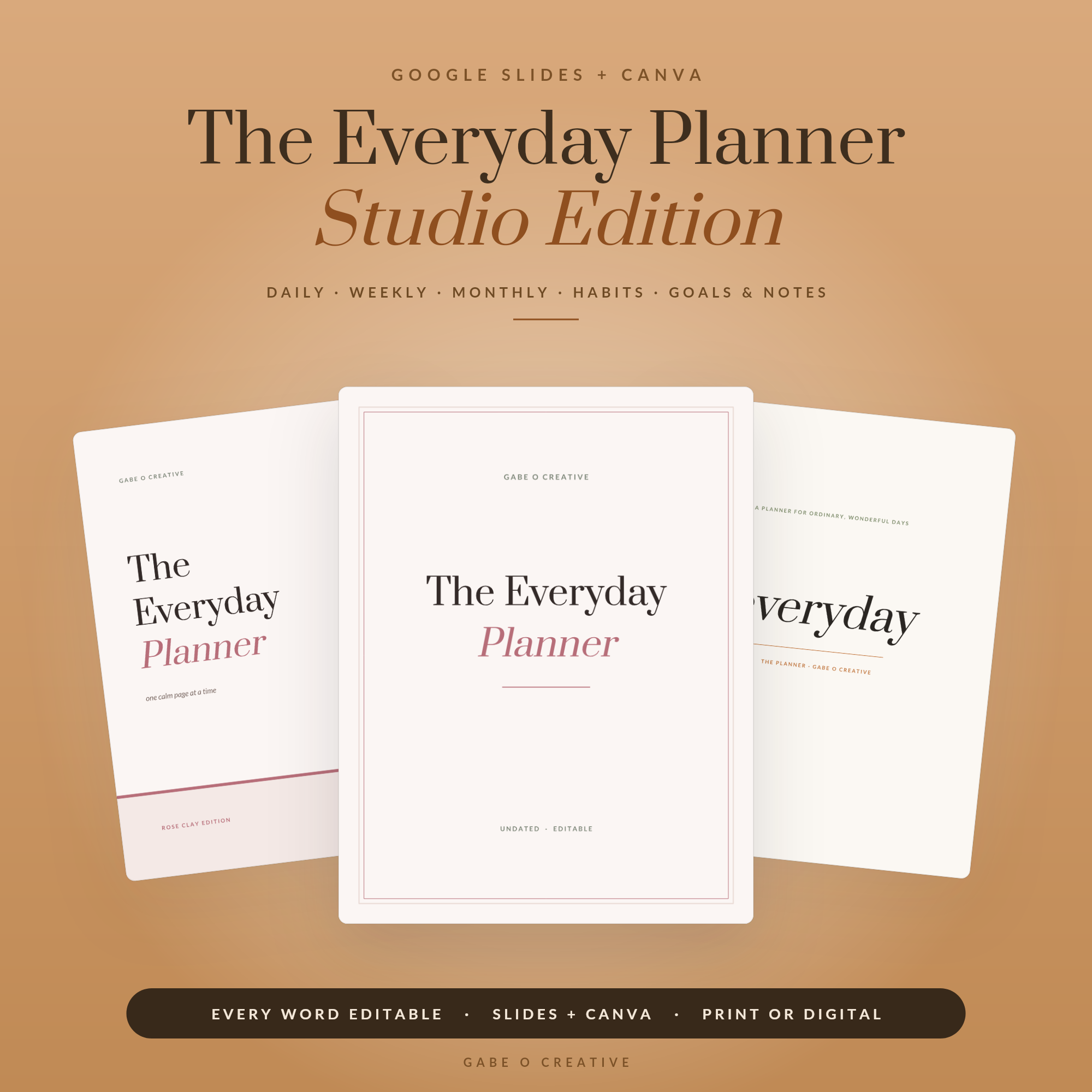
If you've bought an editable template and found yourself wondering which app to open, the honest answer is that Google Slides vs Canva is less about which is better and more about which fails in the place you care least. Both will edit the same layout. Canva is friendlier the first time; Slides is more predictable the tenth time, especially once printing is involved. Our Everyday Planner Studio ships in both formats for exactly that reason — you shouldn't have to learn a new app to use a planner.
Not sure which suits you? Open the editable planner set in whichever you already have — the layout is identical in both.
 View product →
The Short Answer
| If you want to… | Use |
|---|---|
| Design something visual quickly, with no experience | Canva |
| Edit a lot of text and keep the layout stable | Google Slides |
| Print at an exact size | Google Slides |
| Work with photos, graphics and effects | Canva |
| Collaborate or comment with someone else | Google Slides |
Neither is wrong. But the failure modes are different, and knowing them in advance saves the frustrating hour.
It's also worth saying plainly: for most people the right answer is simply whichever one you already have open. Both are free to use, both edit the same files, and the time you'd spend learning the other is almost always longer than the time it would save you. The comparison below matters when you're choosing for a specific job — a wedding invitation versus a year-long planner — not when you're deciding once and for all.
Where Canva Wins
Canva is genuinely easier for someone who has never designed anything. You drag, you drop, you click a colour, and the result usually looks intentional. Its asset library is the real advantage — icons, shapes, photos and thousands of fonts, most of them free.
It's also better for anything image-led: social graphics, vision boards, invitations, anything where you want a background photo to sit behind text without a fight. Our Vision Board Studio and Media Kit Studio are both happier in Canva for that reason.
The Canva catch
Two things trip people up. First, Pro elements — a template built with premium assets will watermark on a free account. Ours are deliberately built with free elements so this doesn't happen, but it's worth knowing when buying any template. Second, Canva is looser about dimensions: it will happily let you resize a page in ways that ruin a print size, so if it's going on paper, check the measurements rather than the screen.
Where Google Slides Wins
Slides is unglamorous and predictable, which is exactly what you want for a document you'll use for a year. Text boxes stay where you put them, the page size is fixed unless you change it deliberately, and the PDF export comes out at true size — which is why every printable in our range is safest through Slides.
It's also free without qualification, works on anything with a browser, and handles collaboration properly: real comments, real version history, real sharing. For a client welcome packet or a recipe book that grows over time, that history matters more than a prettier editor.
The Slides catch
It is a presentation tool wearing a design tool's clothes. Precise alignment takes more clicking, the effects are basic, and the stock library is thin. If you want a drop shadow and a gradient overlay, you'll be happier in Canva.
 View product →
The Font Problem (Both Apps)
This is the single most common complaint about any editable template, and it isn't a fault in the file: if you don't have the font, the app substitutes one. The substitute has different letter widths, so lines wrap differently, headings jump to two lines, and the whole page looks subtly broken.
The fix is the same either way:
- Check which font the template names — good templates tell you.
- Install or select it. In Slides, use More fonts; in Canva, search the font list.
- If it's unavailable, choose one alternative and apply it to everything rather than leaving a mixture.
- Fix the spacing last, once the font is settled — otherwise you'll do it twice.
Do this before any other editing. Changing fonts afterwards undoes every spacing adjustment you've made.
How to Choose, Practically
Ask what the finished thing has to do:
- Printed at a specific size? Slides.
- Mostly words? Slides.
- Mostly pictures? Canva.
- Shared with someone who'll comment? Slides.
- Never designed before and want it to look good today? Canva.
And then stay in it. Moving a template between the two is possible, but you'll spend the saved time repairing fonts and spacing. If you'd like a fuller walk-through of working with these files, our guide to editable planner templates for Canva and Google Slides covers the editing workflow in detail, and the Canva recipe book guide is a worked example from start to print.
 View product →
Getting a Template Onto Paper Properly
Most template disappointment happens at the printer rather than on screen, and the causes are the same in both apps.
- Export as PDF, not as an image. PNG and JPG exports are fixed-resolution and print soft. In Canva choose PDF Print; in Slides use File > Download > PDF.
- Check the page size before exporting. A4 and US Letter are different shapes, and a file built for one will either shrink or crop on the other.
- Turn scaling off in the print dialogue. Print at 100% or Actual Size — 'Fit to page' silently shrinks everything by a few millimetres, which ruins anything meant to line up.
- Print one test page before doing thirty. Everyone learns this once.
If it prints with a white border
That's the printer's unprintable margin, not a fault in the template — almost no home printer prints truly edge to edge. Either accept the border, trim it with a guillotine, or choose a borderless setting if your printer offers one, remembering that borderless slightly enlarges the page and can crop the outer edge.
If the colours look duller than the screen
Screens emit light and paper reflects it, so printed colour is always a little flatter — pastels especially. Setting the paper type correctly in the print dialogue does more to fix this than any adjustment inside Canva or Slides, because it tells the printer how much ink to lay down.
Slides vs Canva FAQs
Is Google Slides or Canva better for editing templates?
Canva is easier for visual work and has the better free asset library; Google Slides is more predictable for text-heavy layouts, printing and collaboration. For most planners and documents, Slides is the safer choice.
Do I need Canva Pro to use an editable template?
Not for a well-made template. Ours are built with free elements and fonts, so the free plan is enough. Pro mainly adds premium stock, brand kits and background removal.
Why do the fonts look wrong when I open a template?
The font isn't installed or available on your account, so the app substitutes one — which shifts spacing and line breaks. Install the named font or pick a close alternative and apply it consistently before editing.
Which is better for printing at home?
Google Slides, because the page size is fixed and it exports a clean PDF at true size. Canva prints well too, but you must export as PDF Print and check the dimensions rather than trusting the screen.
Can I use the same template in both?
Usually yes — a Slides file can be exported and imported into Canva and vice versa, but expect to fix fonts and spacing afterwards. It's cleaner to pick one and stay in it.
Which is easier if I have never designed anything?
Canva, by some distance. Drag, drop, click a colour. Google Slides needs a little more patience but behaves more predictably once you know it.
Try one and see which fits. The Everyday Planner Studio opens in both, or browse the full Google Slides & Canva collection — planners, invitations, media kits and business paperwork, all editable.