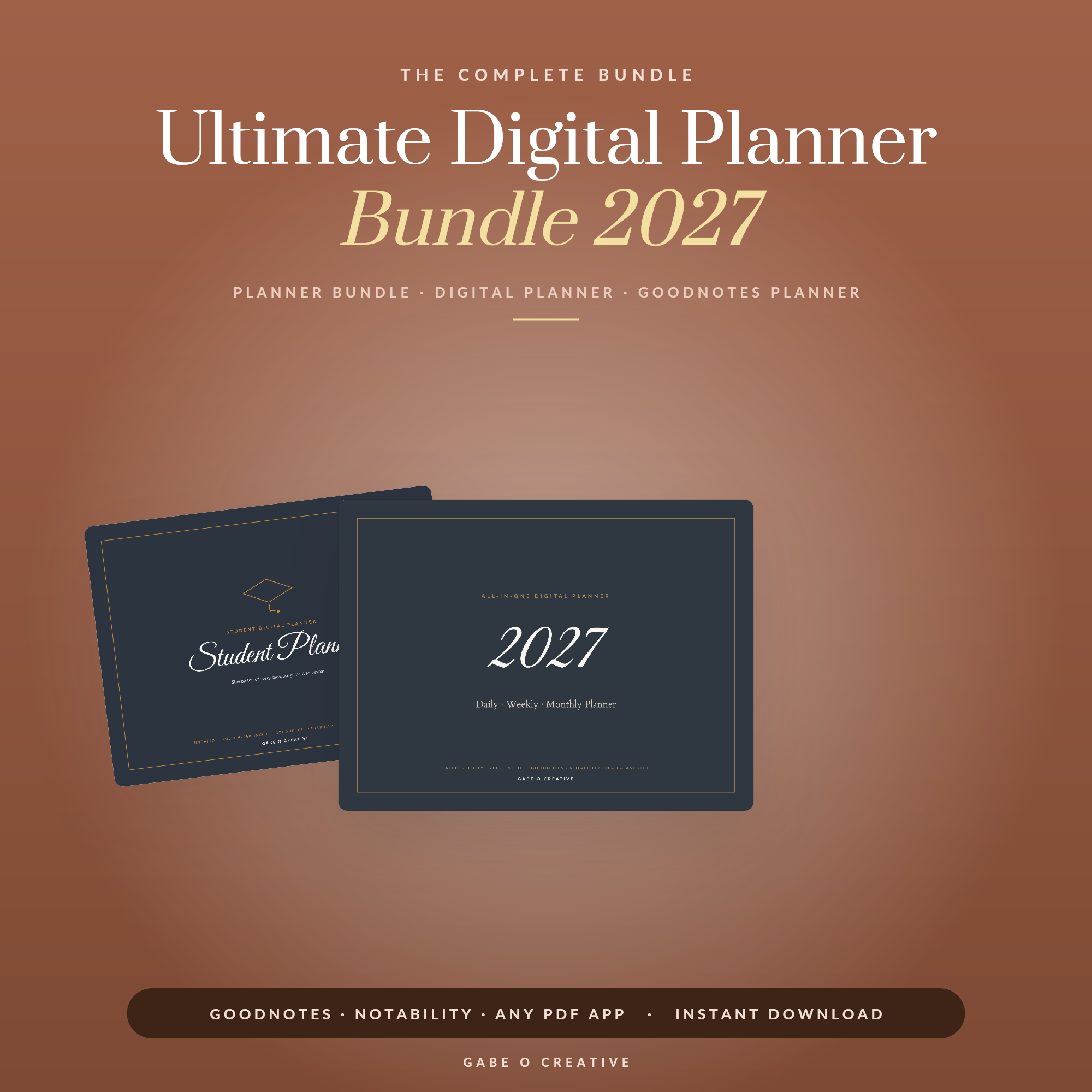
A digital planner for Goodnotes is often a PDF with writing space and links between pages. Choose it by the tasks you need to record and whether its navigation works for you. A larger page count does not automatically make it easier to use.
Choose the layout before the colour
List the things you want on a normal planning page: appointments, a short task list, project notes or study reminders. Compare those needs with a listing's actual page previews. If you only want a weekly overview, a dense daily planner may add navigation you do not need.
| Choice | Check in the preview or listing |
|---|---|
| Dated or undated | The year, week start and whether unused dates matter to you |
| Portrait or landscape | Whether writing boxes suit your normal tablet orientation |
| Daily, weekly or subject pages | How much navigation your usual task requires |
| PDF or editable template | Whether you need to annotate pages or redesign their layout |
| Calendar connection | Explicit compatibility, rather than assuming clickable tabs mean sync |
We sell the products linked here; this is a setup guide, not an independent comparison of every planner on the market. The Digital Planner Bundle is one option. Check its included files and dates against your needs instead of buying solely on the word “best”.
Import the original and test the navigation
- Save the original download where you can find it again. Extract the PDF first if it arrives inside a ZIP.
- Import the PDF as a document into your notes app, following the app's current instructions.
- Open a monthly or subject tab, then return to the contents page. Test a daily link if the file has them.
- Add a short test note on a page, close the document and reopen it to check that you can find the note again.
Goodnotes documents different ways to open PDF links across platforms; use its PDF hyperlink instructions. If a tab fails, keep the original and your notes, then follow our troubleshooting guide. We do not claim every device, file and app version has been tested by this article.
Plan a first week: an example you can copy
This fictional example keeps commitments and tasks separate. It can be written on a weekly page or plain paper.
| Area | What to write |
|---|---|
| Fixed commitment | Tuesday, 10:00 — dentist; reminder kept in calendar |
| Priority | Finish the draft application by Thursday |
| Next action | Monday: collect the documents needed for the application |
| Small task | Order printer ink when checking supplies |
| Review | Friday: move unfinished tasks intentionally or remove them |
Try the same arrangement for a week before importing stickers or building an elaborate colour system. If a task repeatedly moves, break it into a smaller action or reconsider whether it belongs on the plan. This is a suggested routine, not a measured claim about time saved.
Keep appointment reminders separate from PDF tabs
Writing an appointment on an ordinary PDF does not make that note a calendar event. Goodnotes has a separate calendar-enabled Planner with eligibility and functionality limits. Our calendar integration guide explains the distinction. Keep appointments in your calendar if you rely on alerts.
Decide how to keep a recoverable copy
Before reorganising or replacing a used planner, check your app's current backup and export options. Confirm that the saved format preserves what you need, including editable notes if that matters. Try opening a copy rather than assuming an export is usable because a file exists.
If you need subject notes rather than dates, compare the Digital Notebook.
Questions and answers
What is the best Goodnotes planner?
There is no universal best file. Compare the actual page layout, dates, navigation and intended use with your needs. This guide does not rank products through independent comparative testing.
Do hyperlinked tabs sync appointments?
Tabs in a standard PDF navigate between pages. They do not establish calendar integration. Check the requirements for a calendar-enabled product separately.
What should I test before writing a whole year of plans?
Test links to and from the sections you use, add a short note and reopen it, and check that you have a recoverable copy of your work.
Sources and checks
Source links checked on 8 September 2026. Examples marked as illustrative are created for this guide; they are not customer results.